
Create Engaging Product Photos
Product photos for your printable products are essential to customers’ buying decisions; it’s the most important factor in deciding to buy.
A poor image could prevent you from making a sale, even if you have the most awesome product.
This training will show you exactly how to create images that get your customers clicking and buying.
Watch the video to learn how to make a product image on Canva and then read the tips below to find out how to showcase and present your product’s best features.
To complement this lesson, I also have a guide: Product Listing Images That Sell for you. In this guide, we delve into the essential elements of creating compelling product photos that tell a story, engage your audience, and ultimately boost your sales.
You can read the guide here.

High Quality Product Photos Are Essential
As we’ve just discussed, high quality product photos for digital products are essential. They should:
- Grab the attention of customers and compel them to click
- Clearly display the product so that customers know exactly what they’re buying
- Display information about size, colour, and materials
- Illustrate how the product can be used
- Help customers to imagine the product in their lives
- Share great reviews
- Be branded with your Etsy shop brand personality
- Use blank space to be clear and clutter-free
Use Mockups
As I sell digital items from both of my Etsy shops, I like to make creating the product images as simple as possible.
To do this I use mockups.
And this way you don’t have to worry a bit about photography skills. You can still make your images look realistic but by using mock-ups it’s clear to your customer that they are buying a digital product.
For example, using shadows can make a pdf look like it’s printed on paper. eBooks can be displayed on iPads. Also, a website template can be displayed on a computer screen.
Using mockups makes it easy to update an image too, should you need to change your products in any way.
The Cover Image
The cover image is the first image you upload to your product listing. It’s the one that appears in a search. The cover image compels customers to click on to your listing. Therefore, this image really needs to “wow” your audience.
Etsy recommend that a listing image size is 2000px for the shortest side of the image with an aspect ratio of 4:3 and a resolution of 72PPI. Here’s the cover image for the Goal Planner we created together in Module 4:
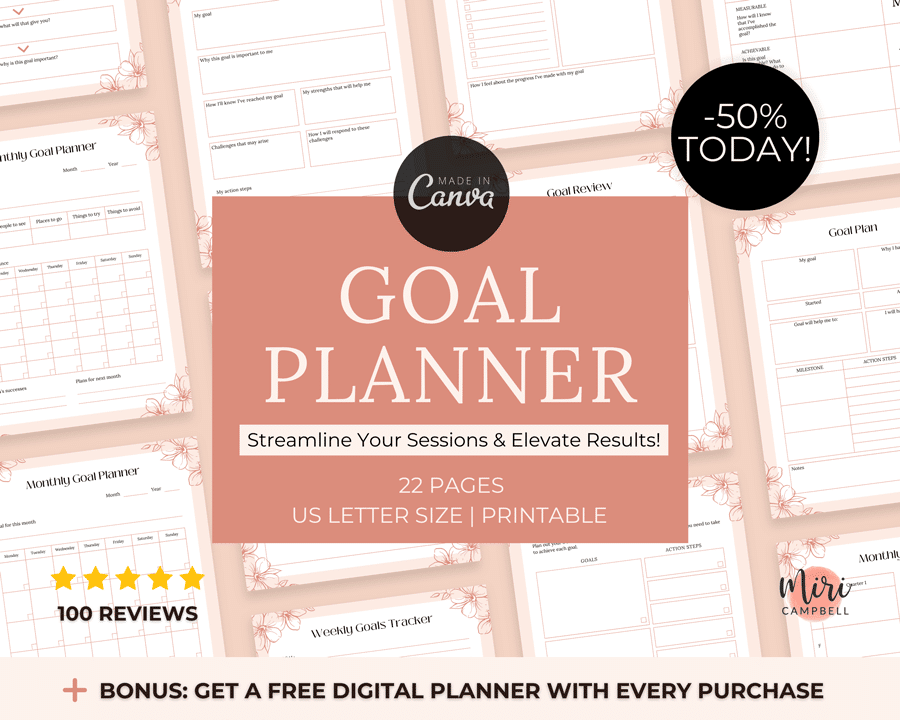
The cover image will appear as a thumbnail in the Etsy search page and is the key to capturing potential buyers’ attention and driving sales.
Aim to: Use a bold title: Use powerful words to explain your product and its main benefit. For example, “Coaching Planner – Streamline Your Sessions and Elevate Results!”
Show-off your reviews: Incorporate the total number of reviews your product has received to act as social proof. For example, “⭐⭐⭐⭐⭐ (100 Reviews)”.
Give a big offer: Consider applying a time-limited shop-wide sale to create urgency and encourage action. For example, “50% Off Everything Today!”
Include a bonus: Include an extra item or offer a special bonus to entice customers to choose your product. For example, “BONUS: Free Digital Planner with Every Purchase!”
Take the time to perfect this cover image, as it can make or break your success on Etsy. Regularly update it with promotions to keep it fresh and appealing to customers.
The Other Images
Etsy let you upload up to 10 images for each product. When listing your product, use all of the images that are available.
If you’re struggling to produce this many images, perhaps include an image which explains that this is a digital product. In addition, include an image that gives your customer instructions on how to use, and an image that gives a promotional code .
You can also include text from the product description on your images. Many buyers don’t read the description that comes with a listing so adding a list of benefits of your product in an image is a great idea.
Make sure any fonts you choose are simple to read, consistent and stand out on a small scale as people will be browsing on phone screens. If your buyer can’t tell straight away what your product is then they’ll click away.
If you’re making an image for a multi page product then don’t feel the need to show every page. Instead, choose 2 or 3 pages which gives an idea of the product. If you show everything, your image will be overcrowded, and your customer might feel overwhelmed by it all and run.
Remember to include your logo on all images. This helps to establish your brand and makes it clear who has made the product.
These tips all help to give your customer a clear idea of what they are purchasing.
The 10 Etsy Photos
Here are the 10 images I made for the goal planner we created in Module 4. To access the Canva templates for the following product images, click here.
Image 1: Cover Image
This image really needs to “wow” your audience. It is the most important image and you want it to hook your buyer and entice them in to look at your other images for your product. So, it needs to look professional, appealing and illustrate the product that you’re offering. Use a bold title that clearly explains what the product is.
Spend time on this image and getting it right as it’s the most important of all your product images.
Image 2: Showcase Some Benefits
Explain what your product is and its benefits. Benefits explain how the product will improve the user’s life or solve their problems. By highlighting the advantages and outcomes, we create a stronger connection with potential buyers, as they can see how the product will positively impact their lives. This approach helps customers understand the value and relevance of your digital product, making them more likely to make a purchase.
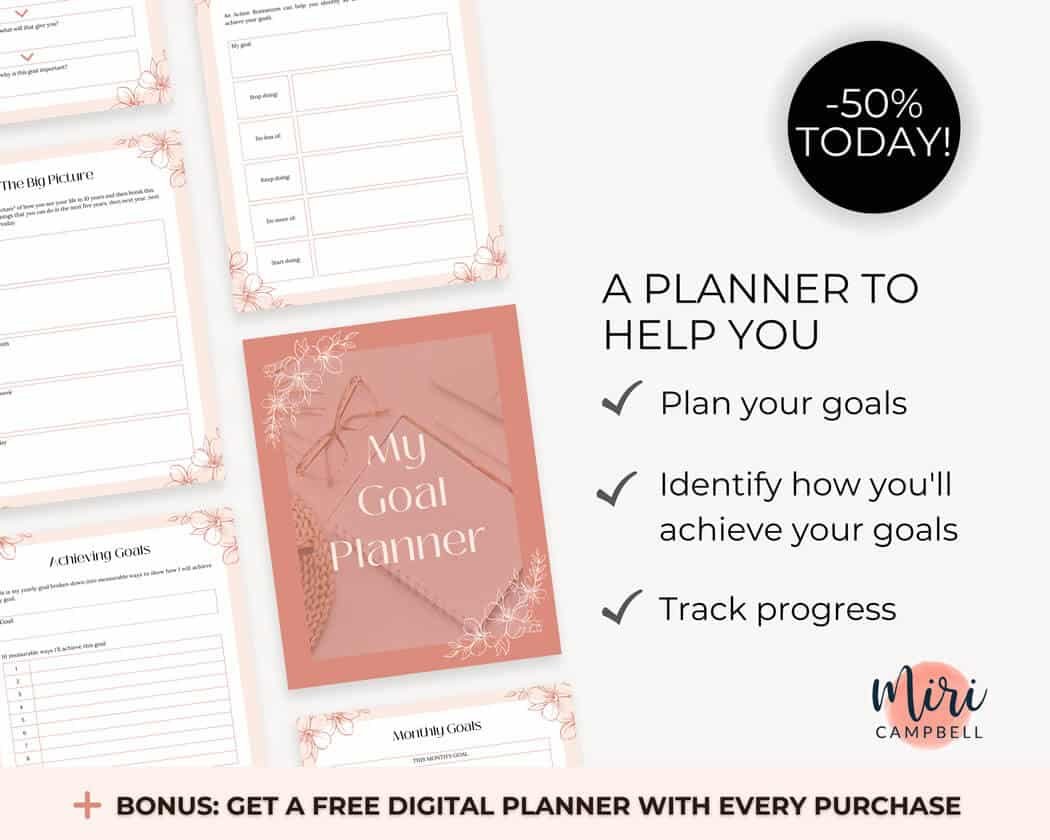
Image 3: Explain What’s Included
In this image show what is included in your digital product. You don’t need to include every page or template as this could be overwhelming. Instead give your customer an overview of what they can expect to receive. Also, explain the sizing of your product. This all goes towards helping customers understand what they are getting so they can make an informed decision.
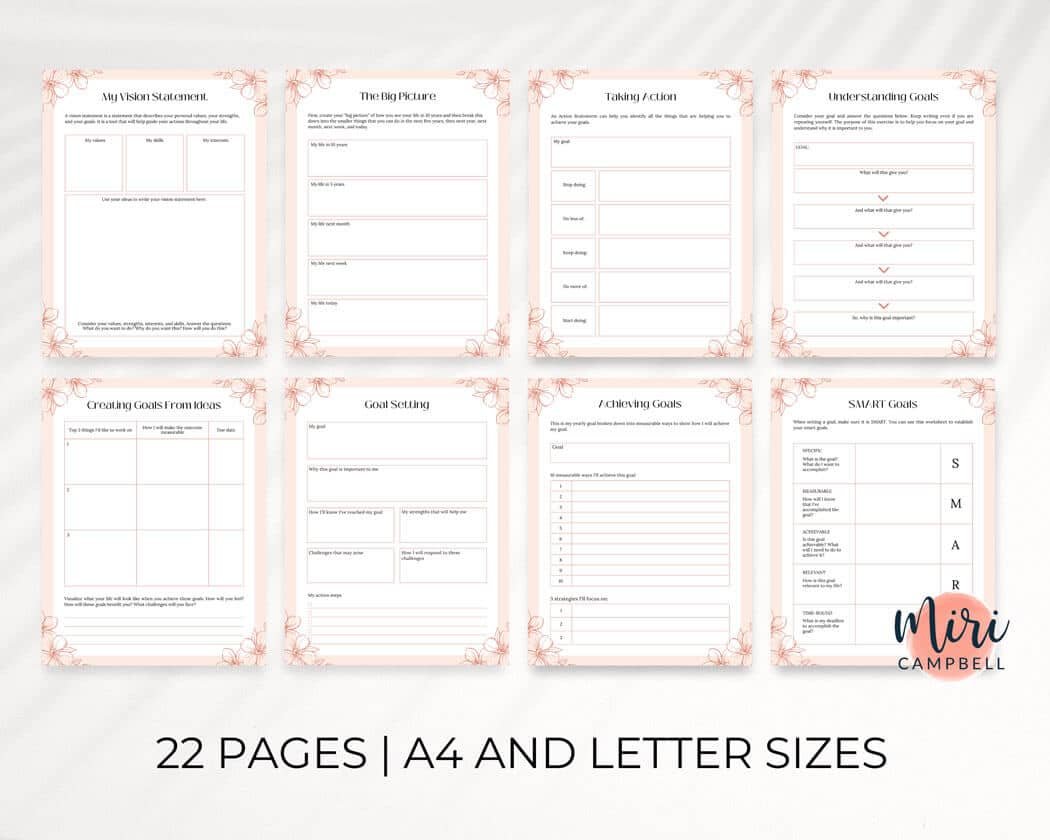
Image 4: Explain Why You Need This
The “Why You Need This” photo is another opportunity to highlight the benefits of your product and demonstrate how it can improve your customers’ lives or solve their problems. Highlighting the benefits of your digital product, helps buyers understand its value and why they need it. Benefits like solving problems, saving time, being convenient, easy to use, and getting real results make people more interested. It meets their needs and makes them more likely to buy it.
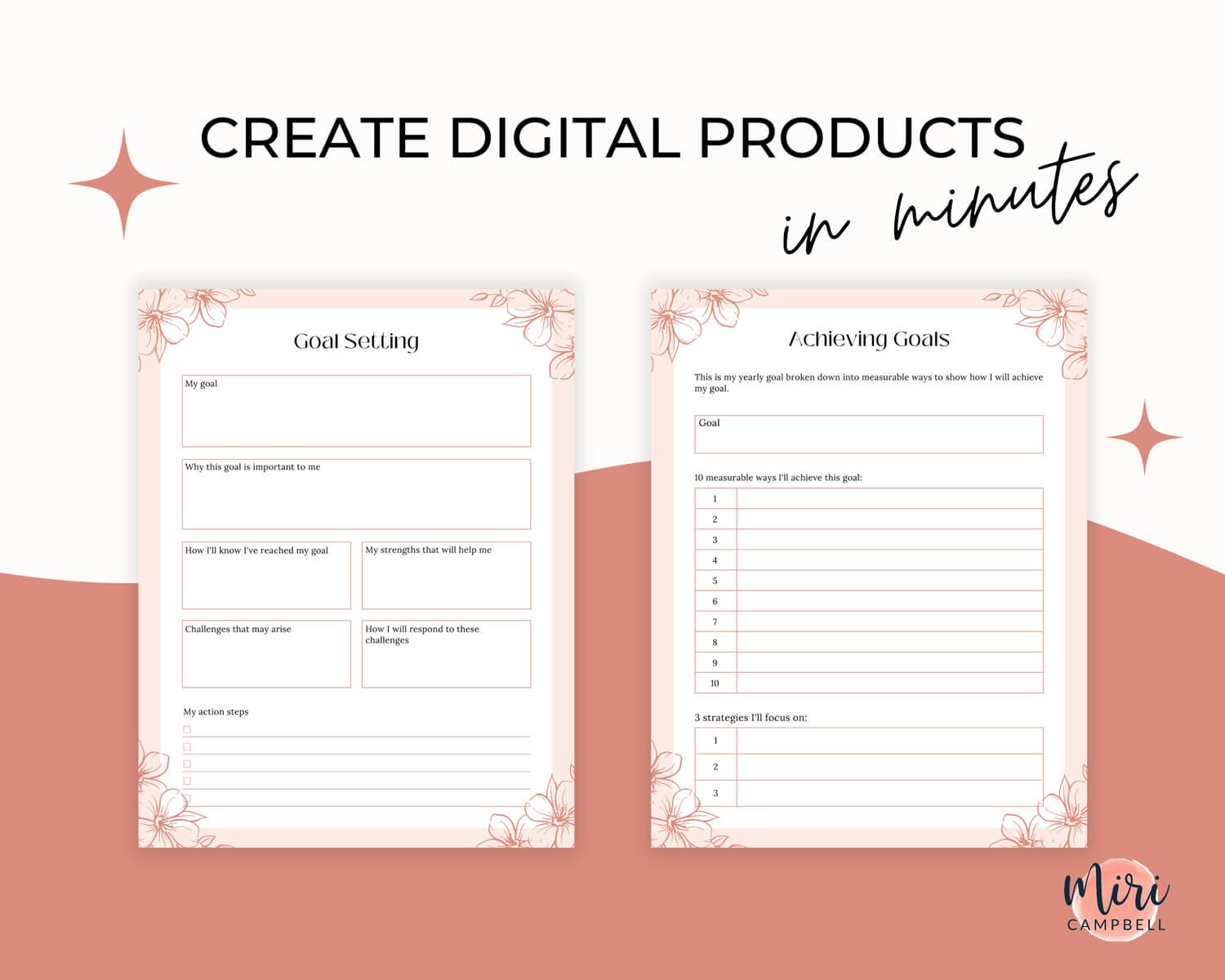
Image 5: Instant Download
Highlight that the digital product is an instant download and available immediately.
When you highlight that your product is an instant download, it means your customers can get right it away without waiting for shipping. It’s super convenient! They don’t have to deal with delays or waiting for it to arrive. It’s perfect for those who want things right now and makes their experience as a customer quick and easy.
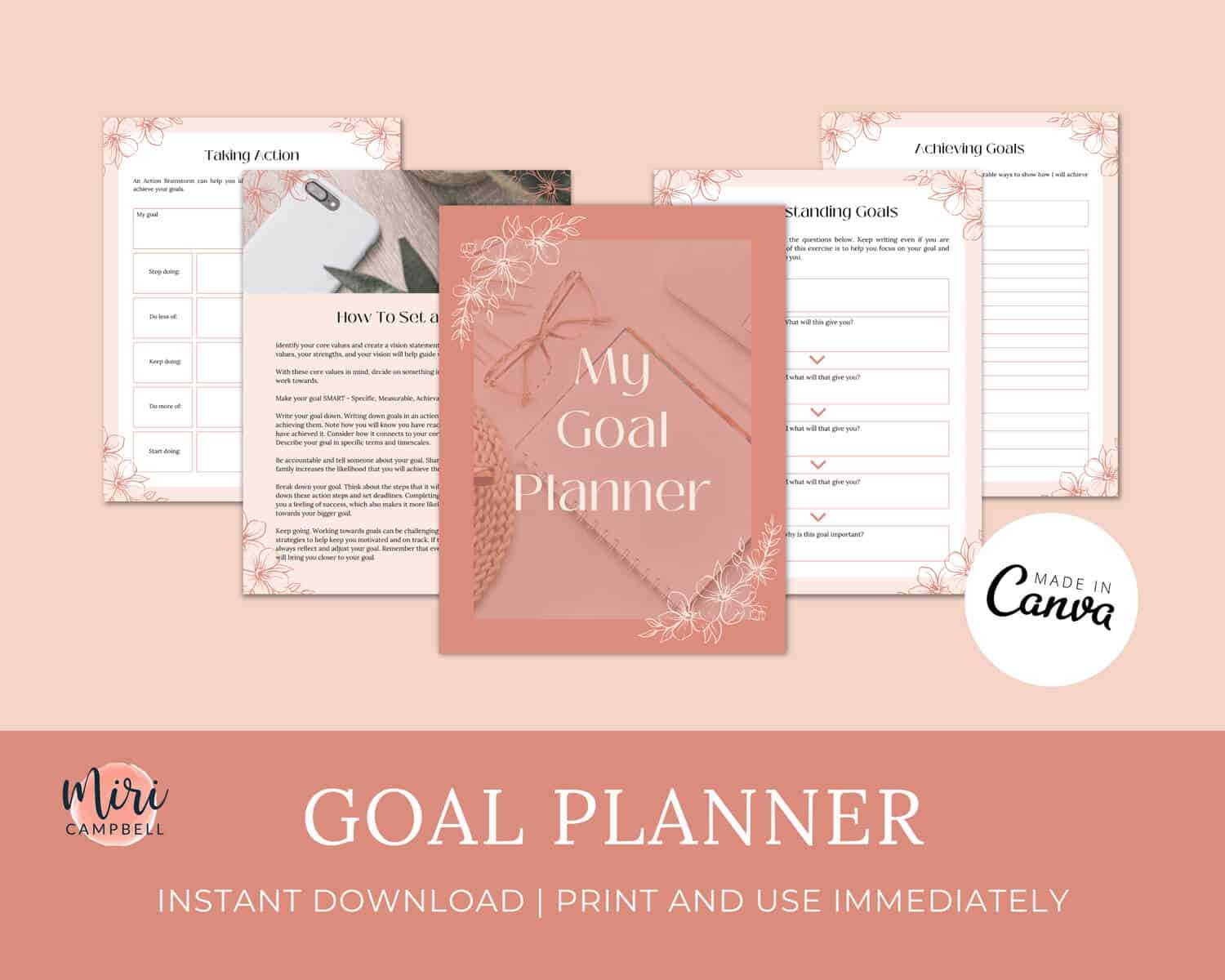
Image 6: The Product In Use
Show the digital product in use. This helps to illustrate the results and outcome a customer can expect to achieve when they buy and use your product. You could try before and after images or simply show your product in use. Think carefully about the aesthetic here and the picture you want to create in your customer’s mind. Aim for illustrating the specific atmosphere or feeling you want your customer to experience. You want to gently help them imagine the product in their life.
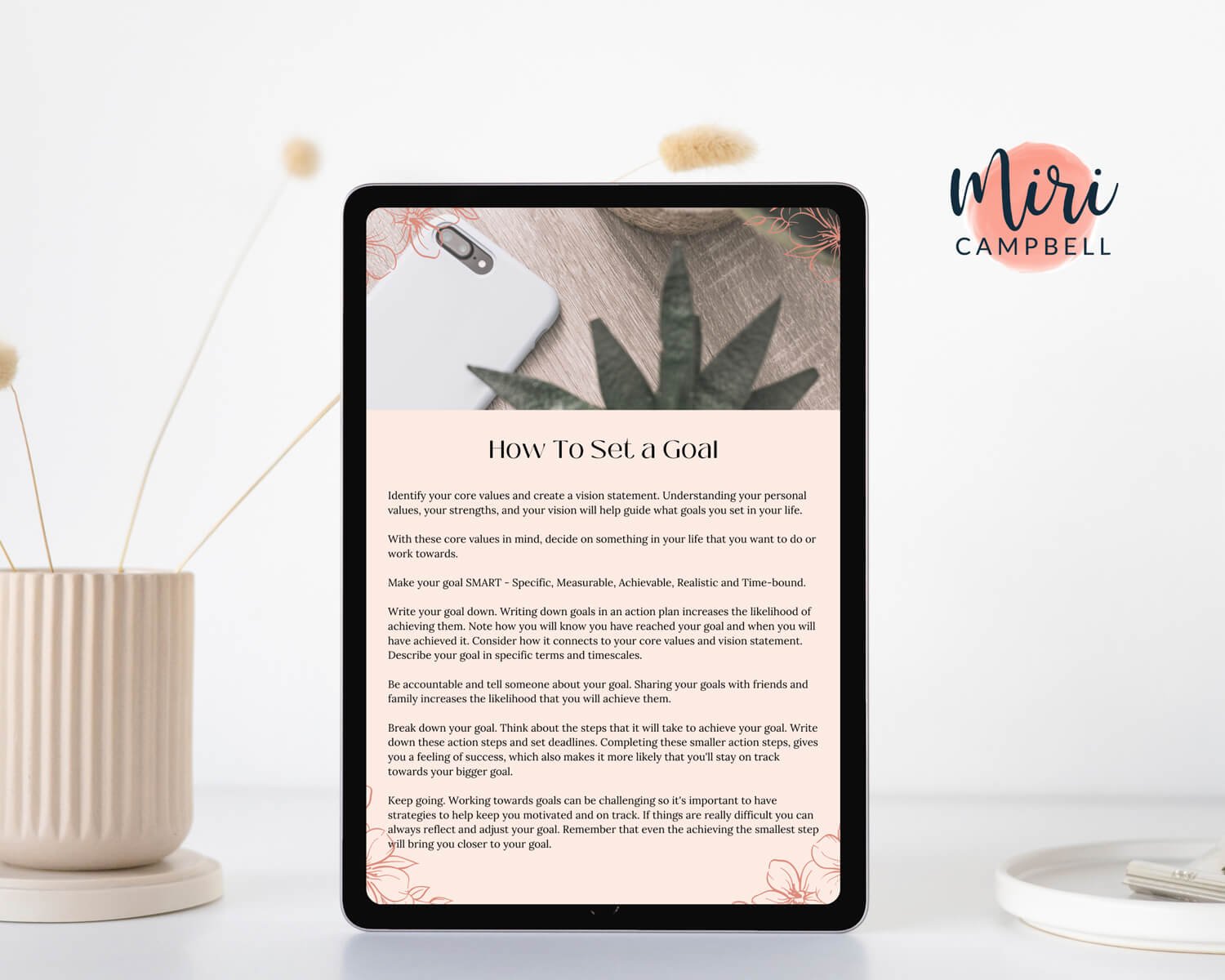
Image 7: How It Works/FAQs
Explain how it works with a simple diagram. Don’t assume that your customers know how to order online. Perhaps this is the first time they are making an online order of a digital product. To help them, create a clear diagram that simplifies the process. Answer the questions that your customers might have before they ask them.
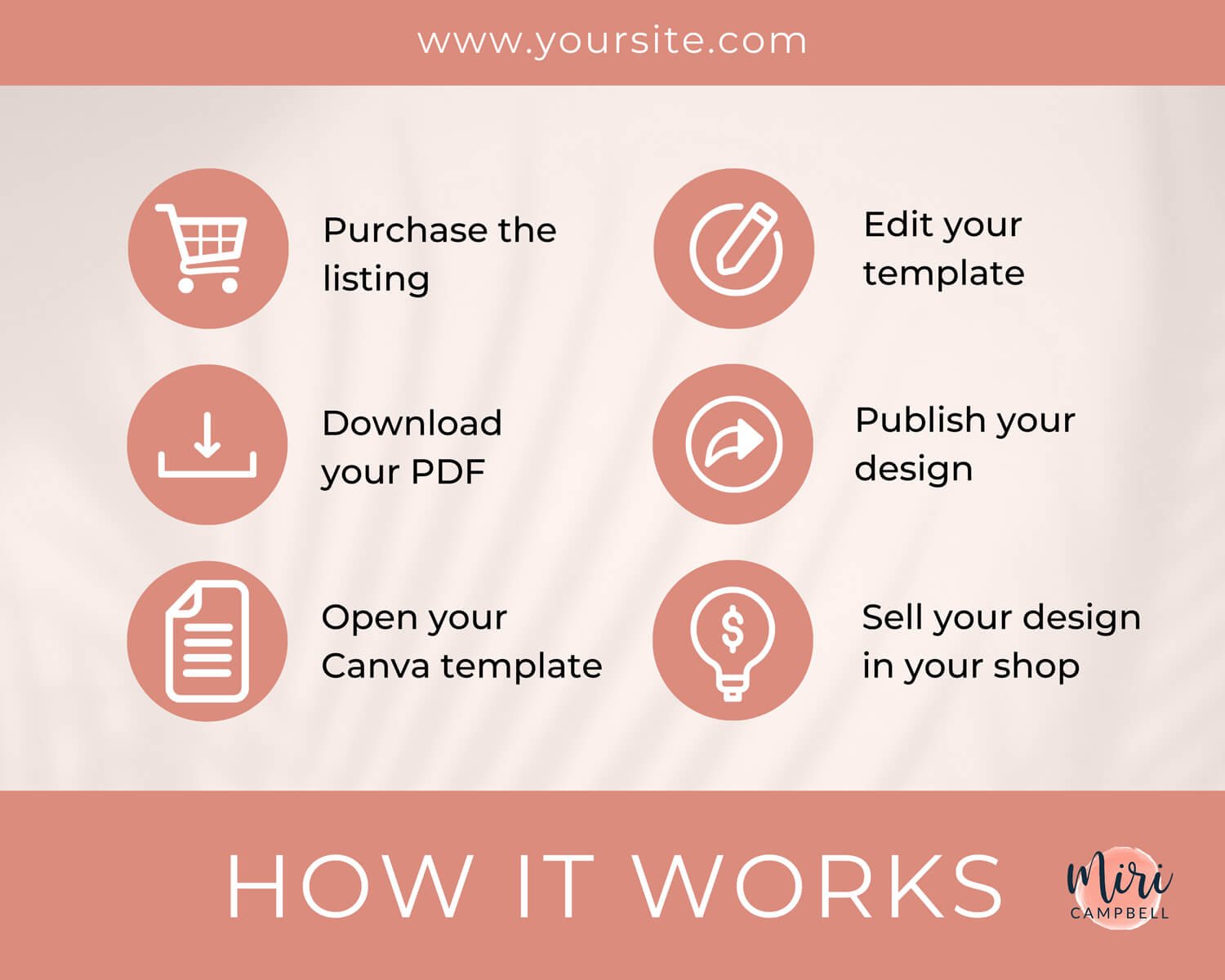
Image 8: Share 5-Star Reviews
Share some excellent reviews for your digital product. Highlighting these reviews with your potential buyers is a great tactic because they provide social proof and help to build trust. They give potential buyers insights into others’ experiences with your product, helping them make informed decisions. Positive reviews create confidence, increase conversions, and establish credibility for your brand.
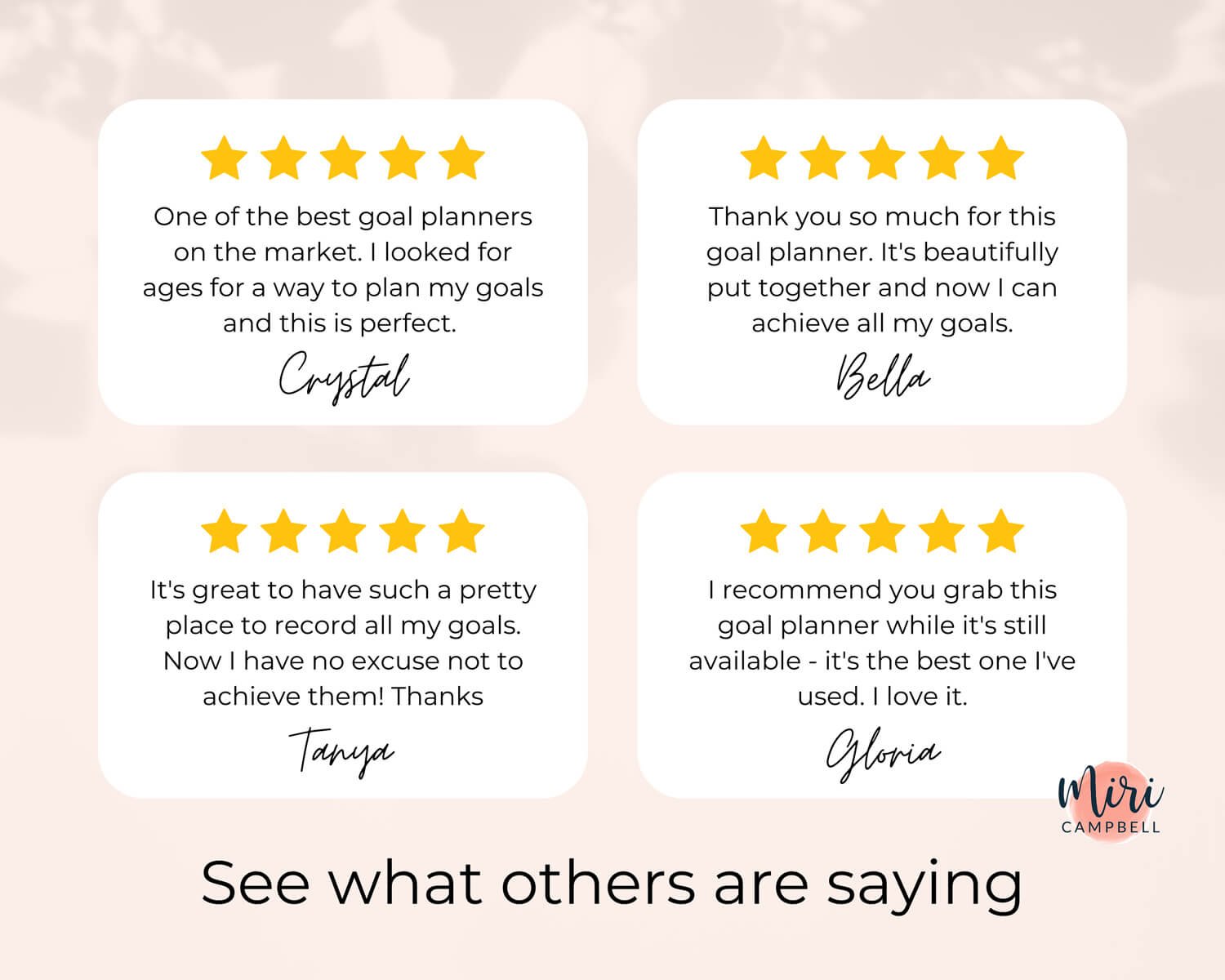
Image 9: Meet The Seller
The “Meet the Seller” photo is an opportunity to establish a personal connection with potential customers, sharing the story behind your brand and giving them a glimpse into your world. By adding a behind-the-scenes photo and providing insights into your vision and values, you create a sense of authenticity that fosters trust and loyalty. Include a candid photo of yourself working or in your workspace. This allows customers to see the person behind the brand and feel more connected. This photo should leave a lasting impression, making customers feel like they are not just buying a product but becoming part of a meaningful journey.

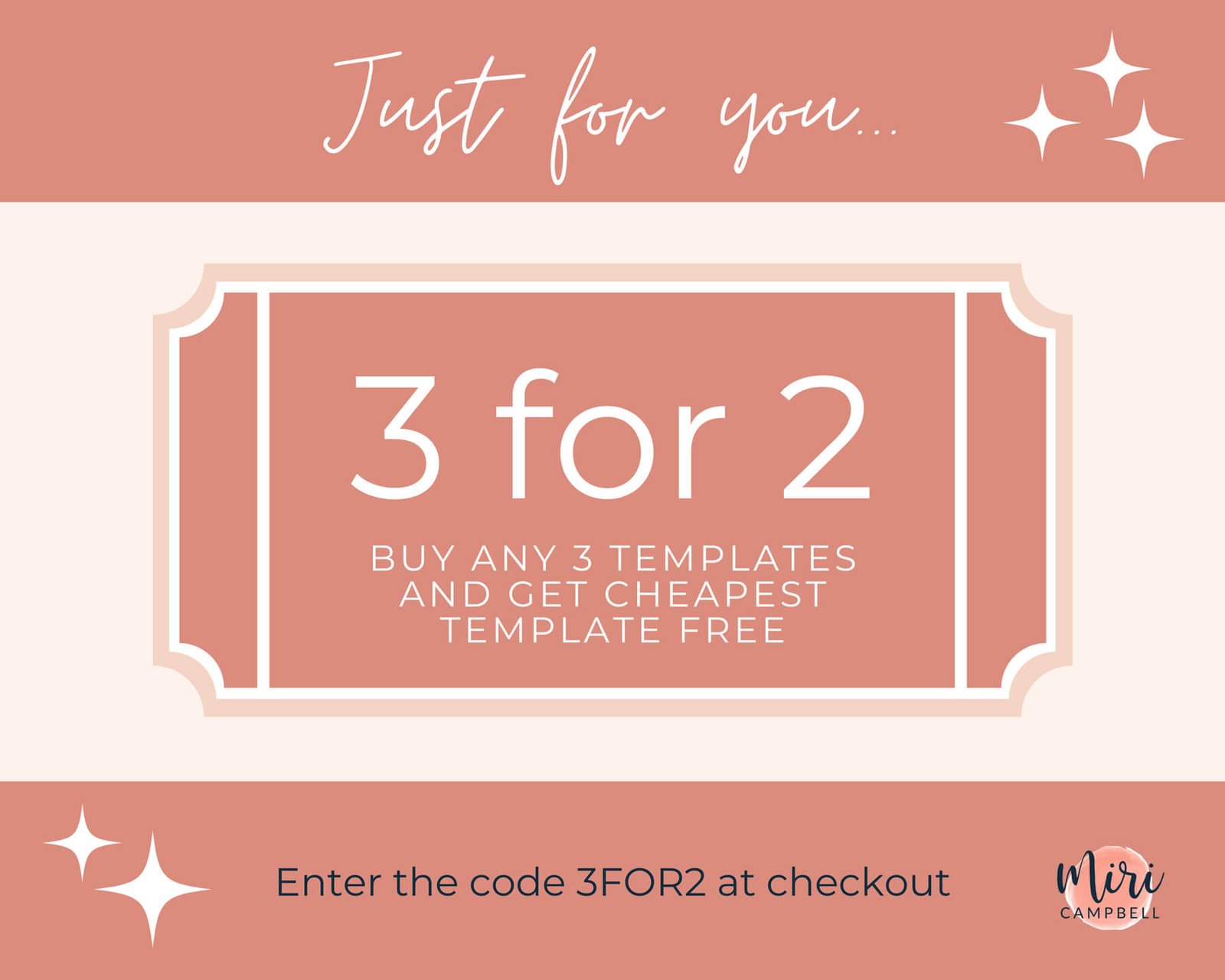
Image 10: Share a Promotional Voucher
Give your customer a promotional voucher to encourage them to buy your digital product.
Providing them with a promotional voucher is a great idea because it creates an incentive for them to make a purchase. It creates a sense of value and excitement, encouraging them to take action. Additionally, this technique can attract new customers, boost sales, and foster customer loyalty.
Now it’s your turn to have a go at creating your own product images for your printable planner. You can find my Canva template here and you’re welcome to use it and adapt it for your own shop and product. Use the Product Photos Checklist on page 40 of your workbook to make sure you’ve not forgotten anything.
Workbook Exercise
Module 5: Lesson 3
Use the checklist to make sure your digital product photos really shine.